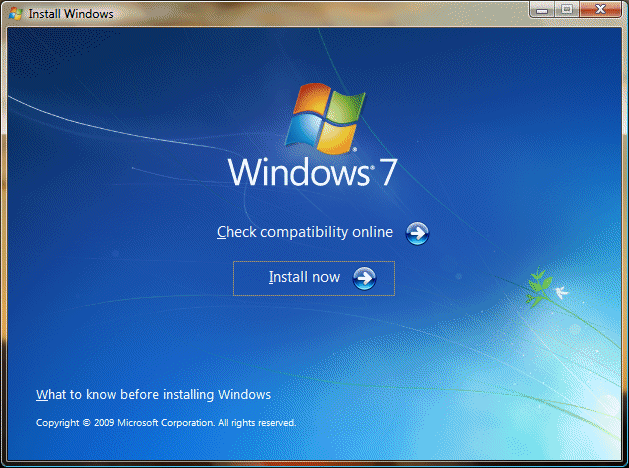
This is were "Part1" of the install officially starts.. You will now see the bar pictured below at the bottom of the screen. It has no relevance to "Time" in general. It moves fast sometimes, slow other times, If you insist on watching it then don't be worried if it stays in any particular spot for long periods of time.

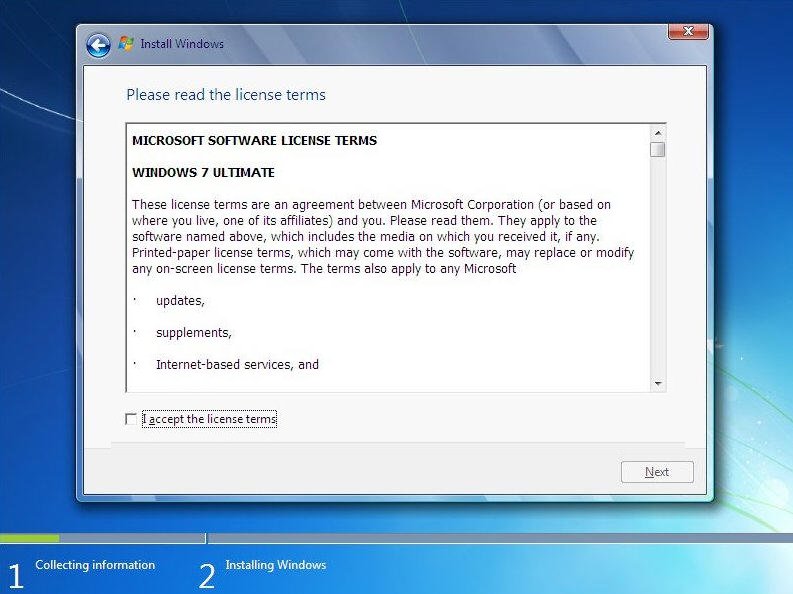
First your Licence agreement, read through it and if you agree click on "I Accept the Licence agreement" box and then click "Next" to continue. If you do not agree then the install halts.
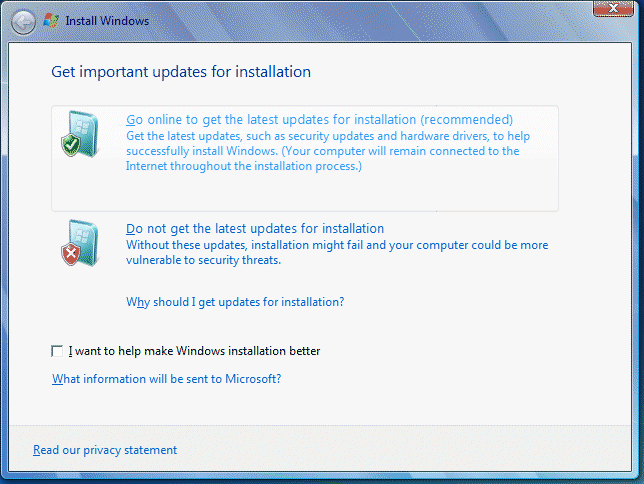
Now click on "Go online to get the latest updates for installation (recommended)", this will download the latest drivers and updates for your system, saving a load of hassle in the near future.
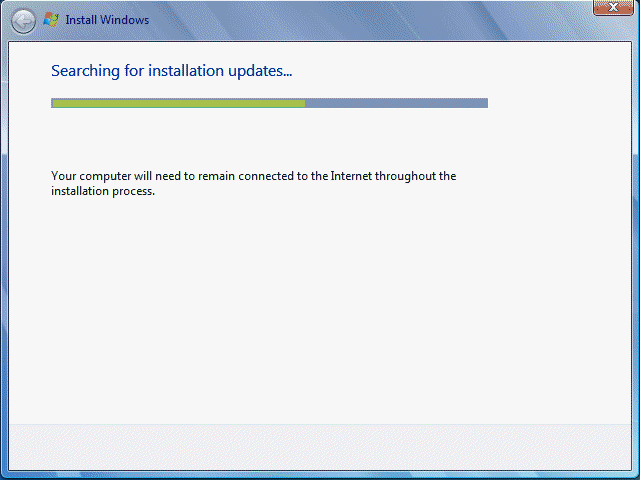
Windows will now search online for the latest updates and begin the download process, remaining connected throughout the process.
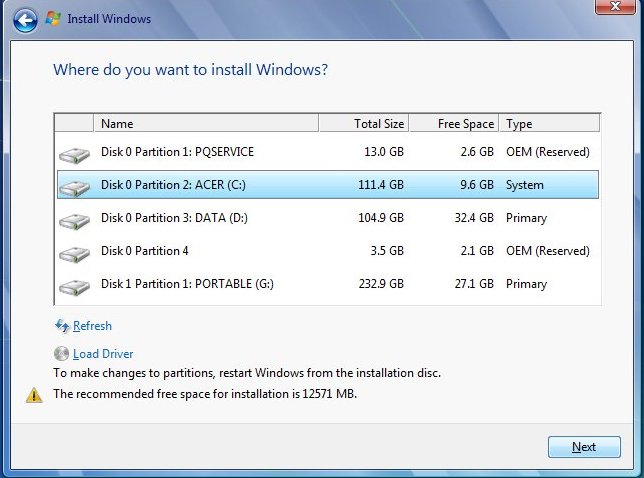
Now you will be asked were you wish Windows to Install, select the drive Vista (Or earlier version of 7) resides, usually "C" drive, as in our selection, Click on this drive (Disk Partition 2:ACER (C:) in our example), click next to continue.
END OF PART 1
Click here for Part 2