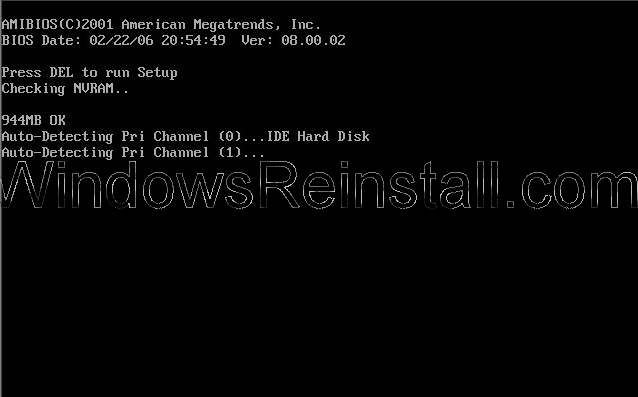
Your Computer will post (These screens will vary from manufacturer images to the text shown below).
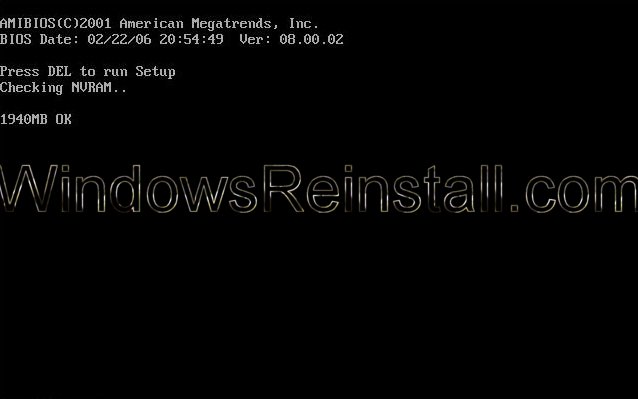
After Windows passes the initial Post screens, Windows 7 will begin to load as the hard drive is Blank, this may take sometime.
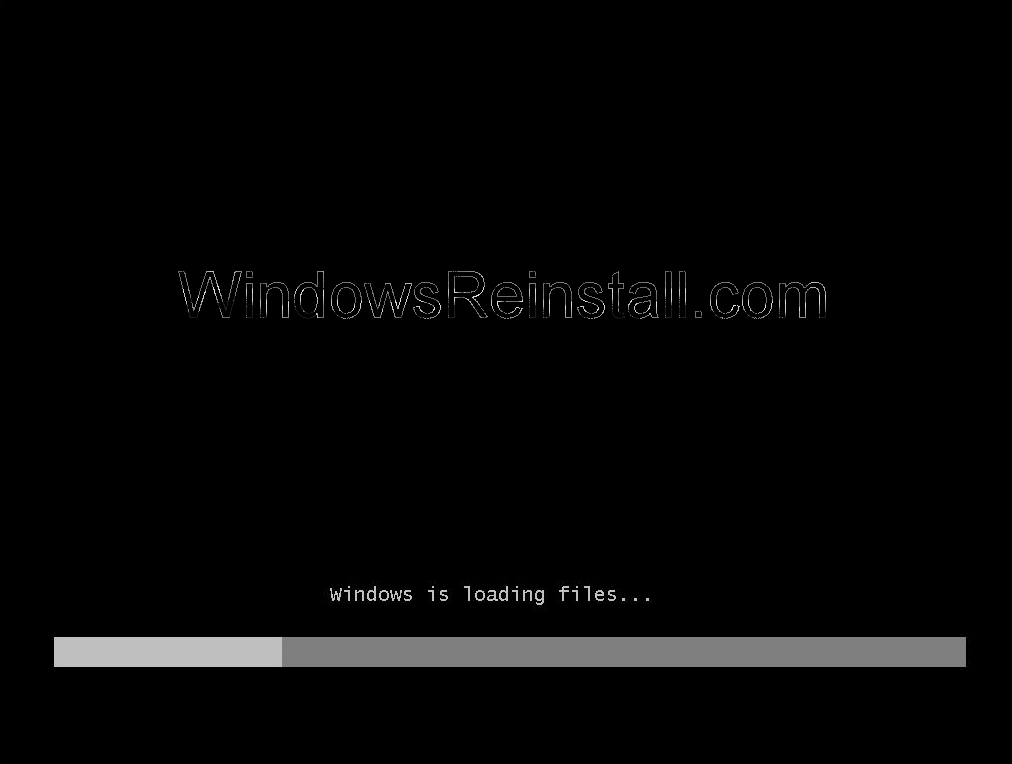
Windows 7 will now start the install procedure.
First you need to select your language, then Time and currency...
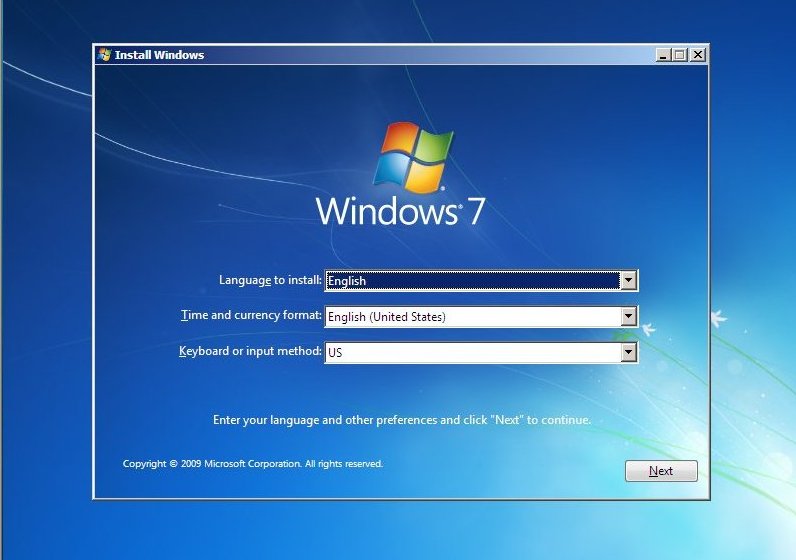
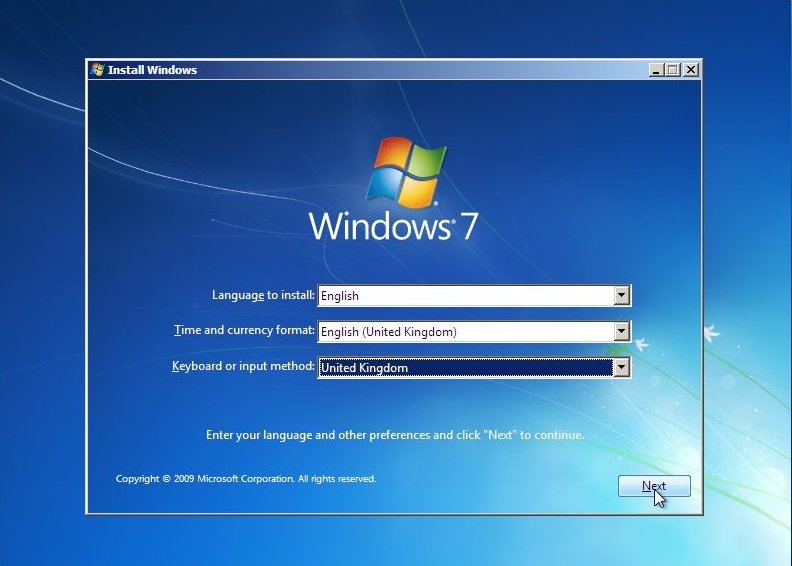
Next set your Keyboard Language. This may have changed correctly when "Time and Currency" option was selected, if not change as needed. Click "Next£ to continue.
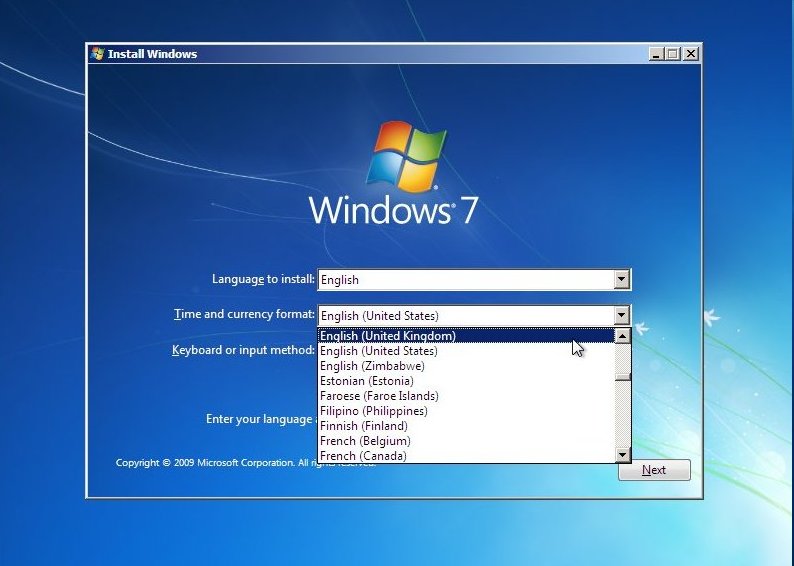
Your Keyboard input method will change to the most common used under the "Time and currency" selected, you can change this now if need be.
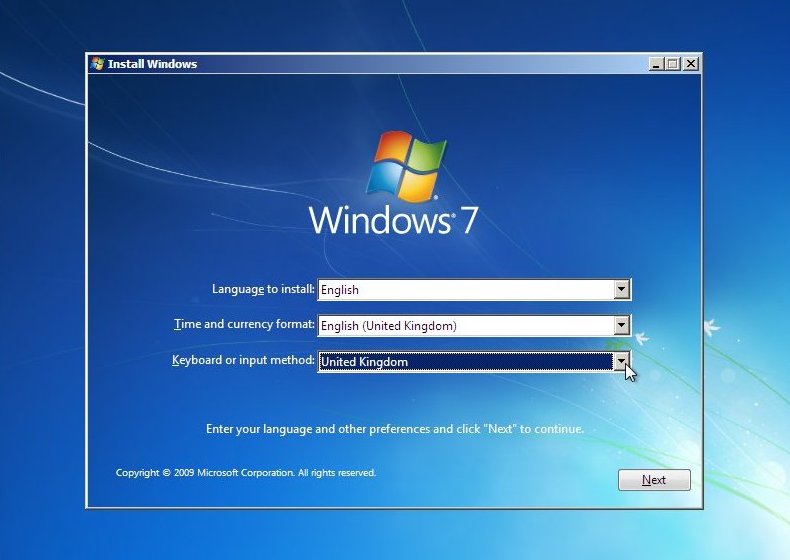
Once happy with your selection click on "Next" to continue
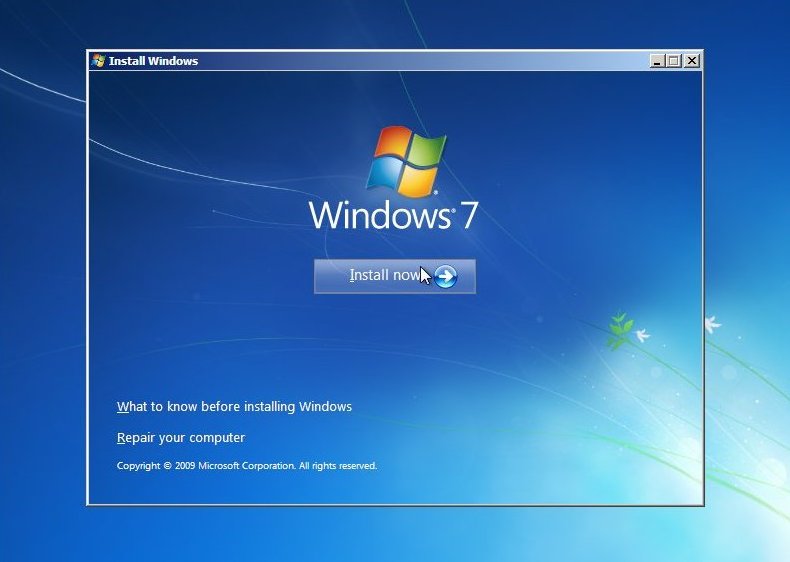
Now the "Install Windows 7" screen will appear, Click on "Install now" to continue.
NOTE: The Repair options on this page are covered in other guides available in the Windows 7 section of www.windowsreinstall.com
Setup will begin...
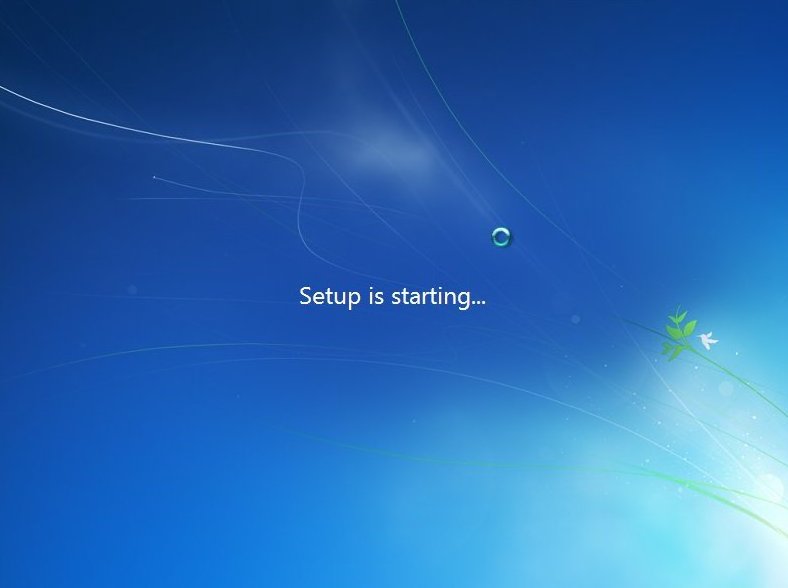
This is were "Part1" of the install officially starts.. You will now see the bar pictured below at the bottom of the screen. It has no relevance to "Time" in general. It moves fast sometimes, slow other times, If you insist on watching it then don't be worried if it stays in any particular spot for long periods of time.

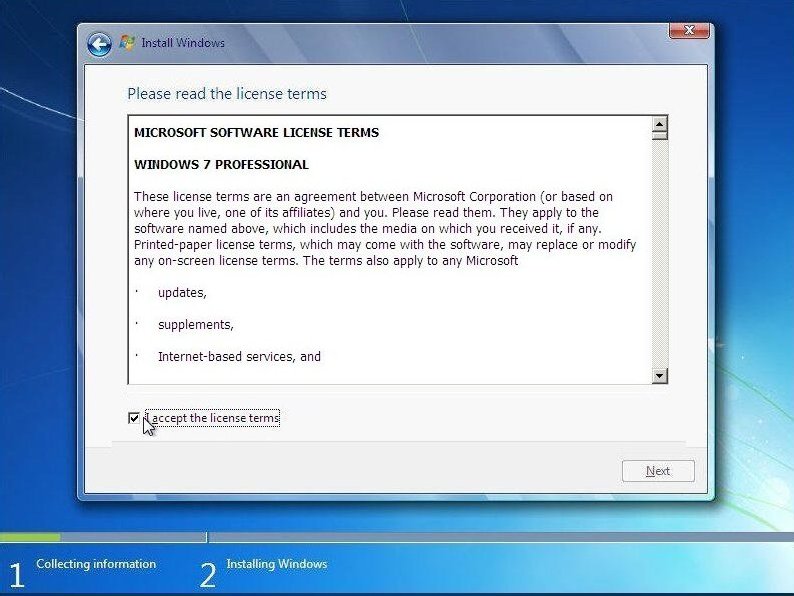
Now the "License agreement".....
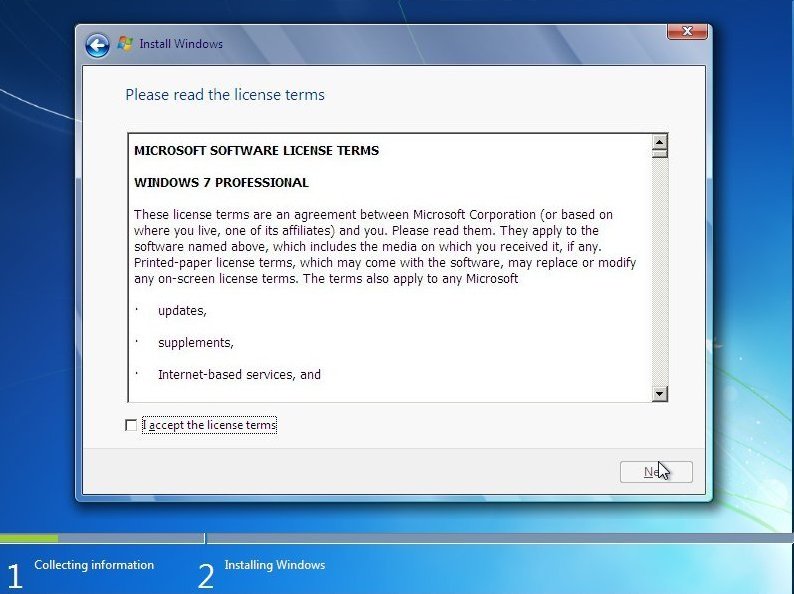
....read them click on "I accept the License terms", then click "Next" to continue. If you don't agree then this is as far as you can go :(
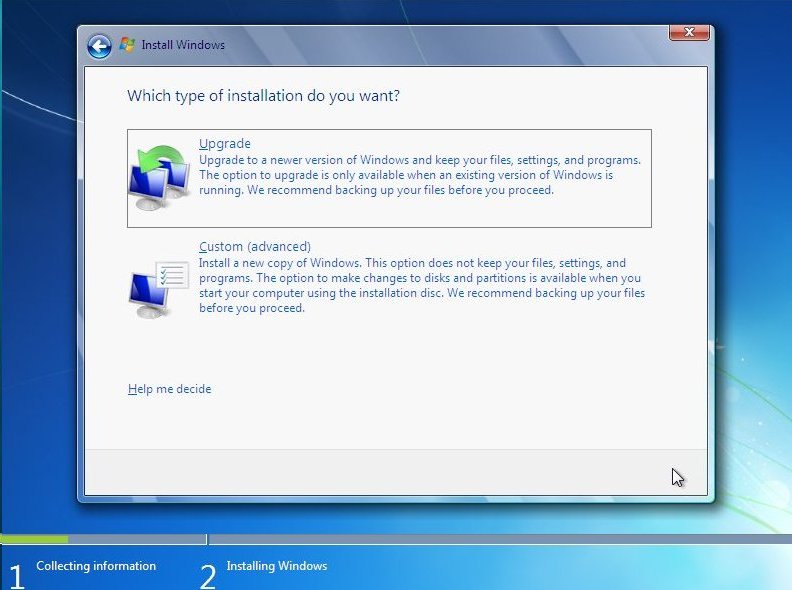
Now the "Type of installation". Click on "Custom (Advanced) to continue..
Load Driver Options Menu: Next you will select the location of the install. The hard drive is not seen due to Windows 7 not having the driver. This driver should be supplied with your motherboard, if not it will be available for download from the motherboards manufacturer. This file will then needed extracted and copied a Floppy, CD or USB storage device.
To continue click on "Load Driver"
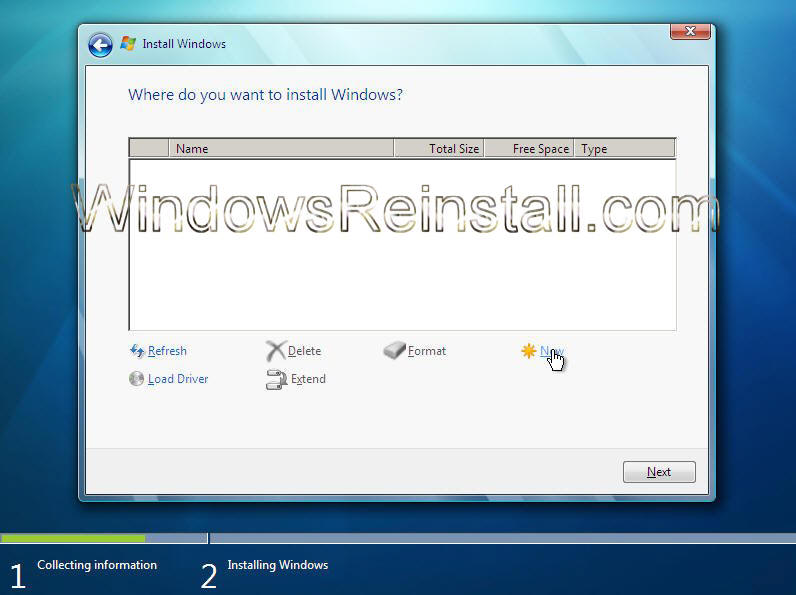
Load Driver Options Menu: Now insert the media that stores the drivers for the device and click OK
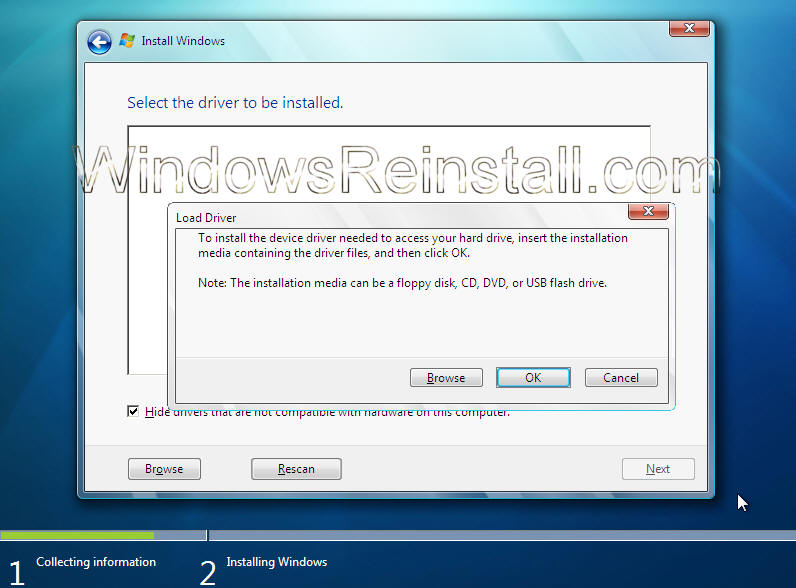
Load Driver Options Menu: Windows will search for it on all available devices.
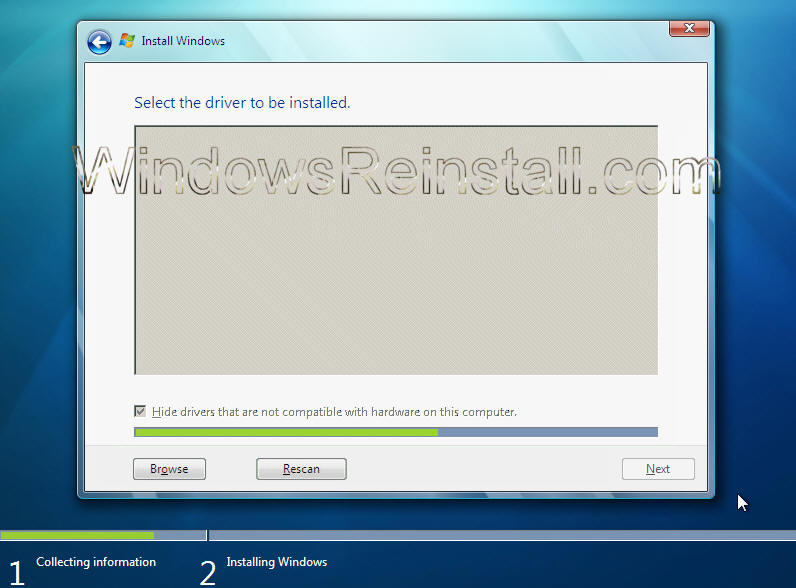
Load Driver Options Menu: A list of available drivers will appear, select the one that matches your motherboard or hard drive. Click "NEXT" to continue.
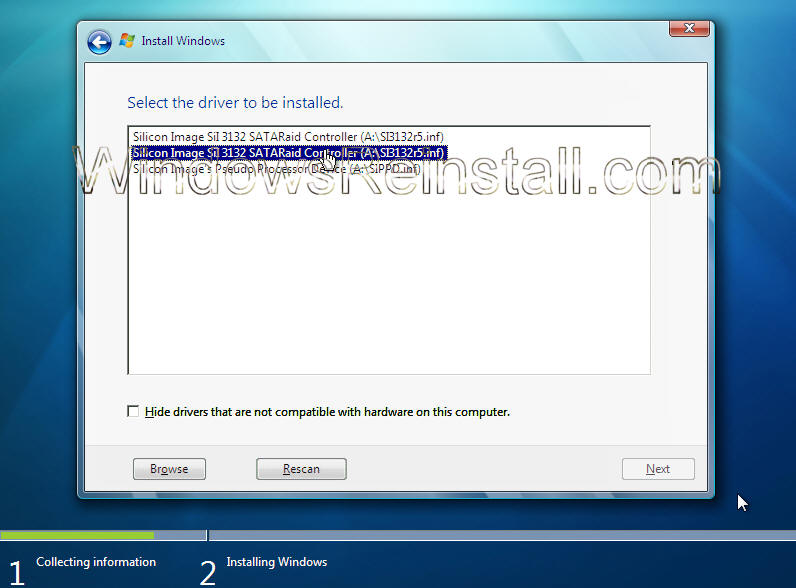
Load Driver Options Menu: With the correct driver loaded your drive should now be seen.
Hard drive setup comes next. Click next for "Automatic Harddrive setup using full capacity", otherwise click on "Drive Options" to configure the drive yourself.
Drive Options Menu: Now click on "New"
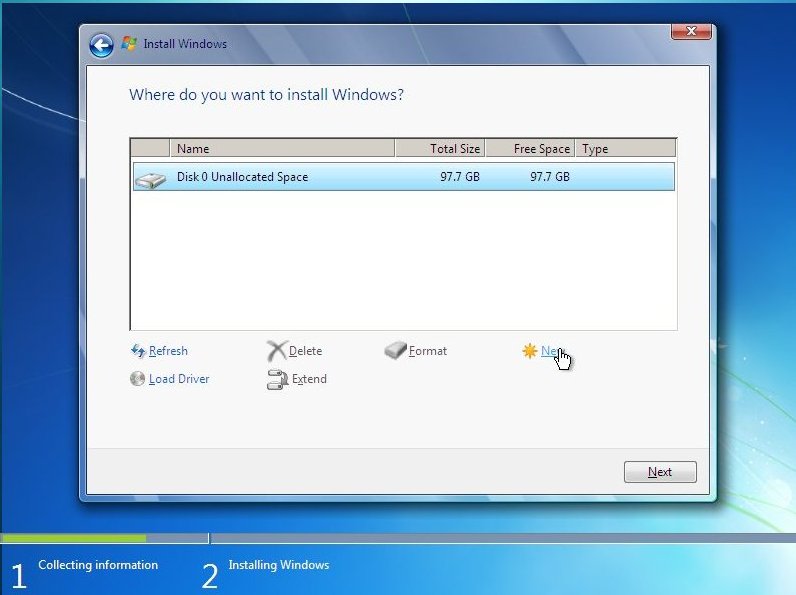
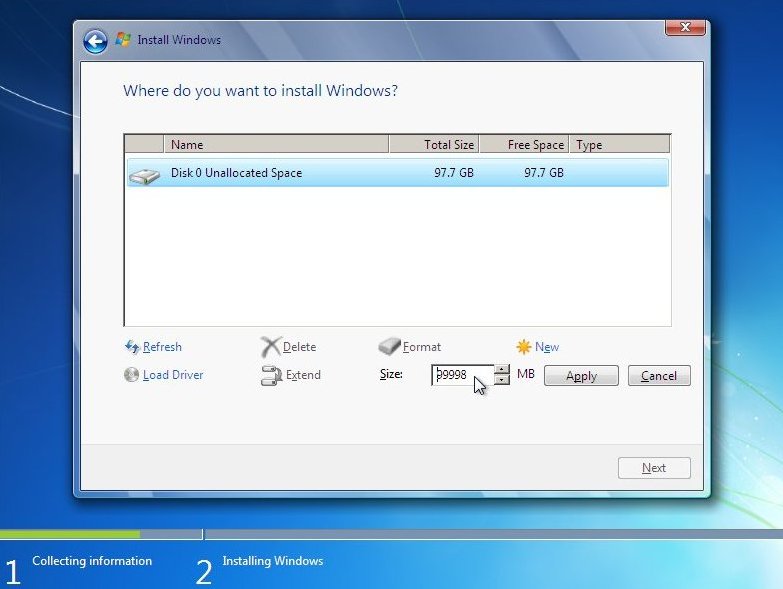
Drive Options Menu: Select the size you want the partition to be (Or manually type it in, in the box). Then click "Apply" to continue.
NOTE: Remember Windows 7 needs 16GB of space to operate in.
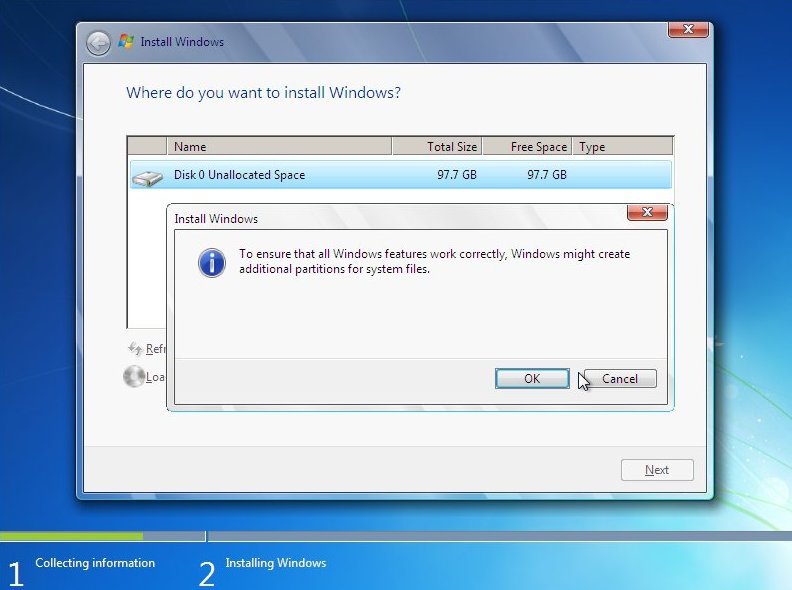
Drive Options Menu: Windows warns that it may need to create a few partitions for the system, Click "OK" to continue.
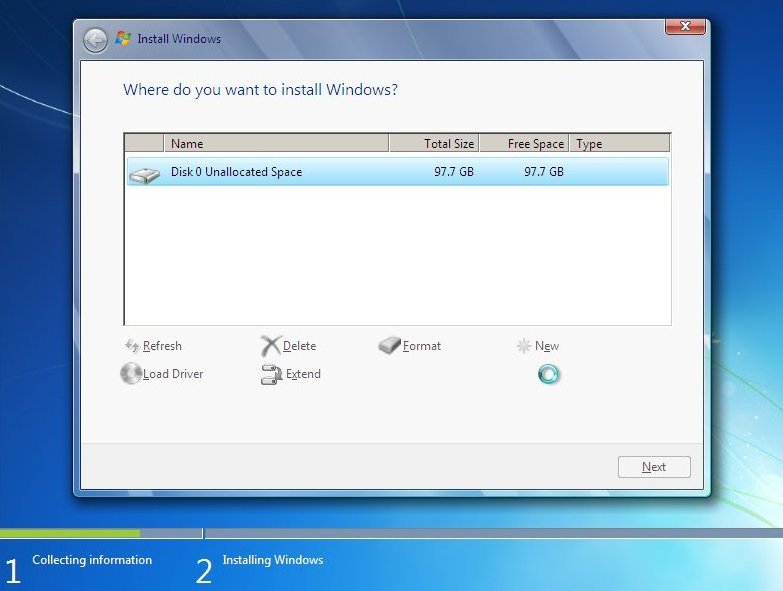
Drive Options Menu: Setting the drive up may take a few moments.
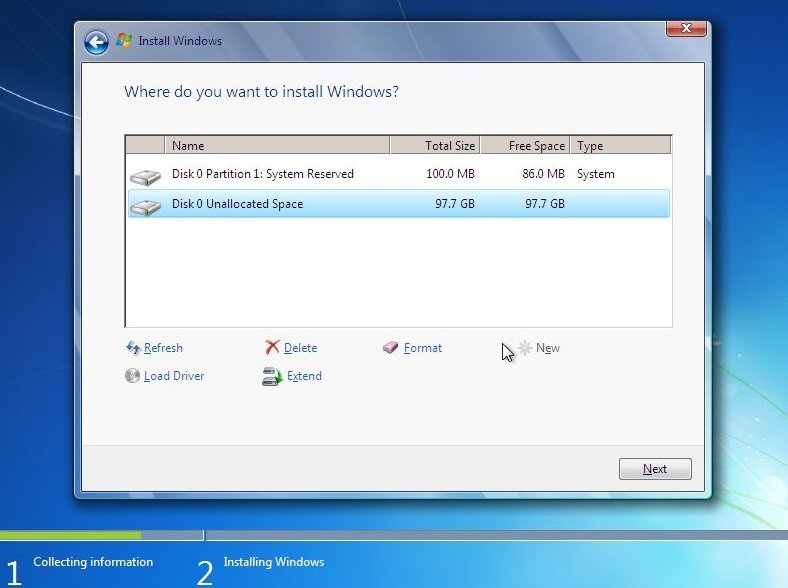
Drive Options Menu: The partitions are now setup, select the partition that says "Primary" underneath "Type" and click on "Format" to finalize the hard drives setup.
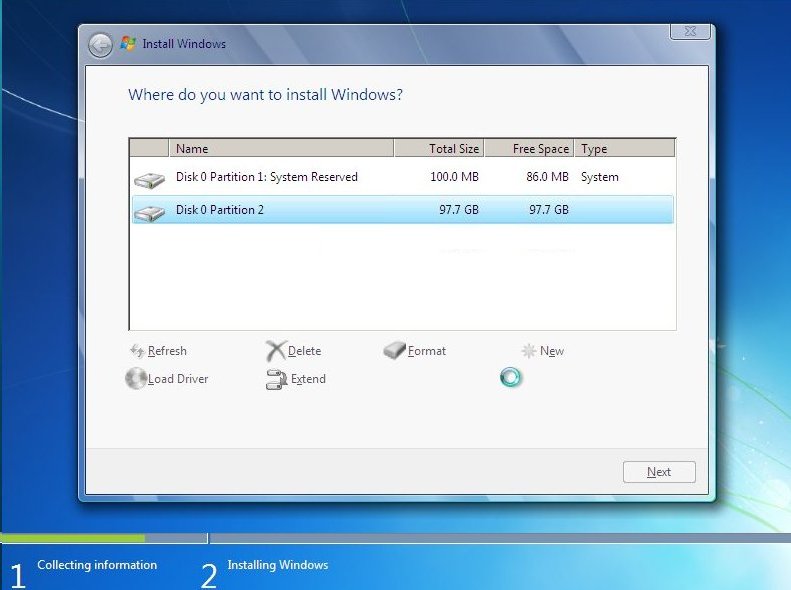
NOTE: There are now two partitions, Windows 7 created the first "Disk 0 Partition 1" by itself for Windows files. "Disk 0 Partition 2" is the one you wanted to configure, and its the only one you should format, and any others you setup after this stage of course.
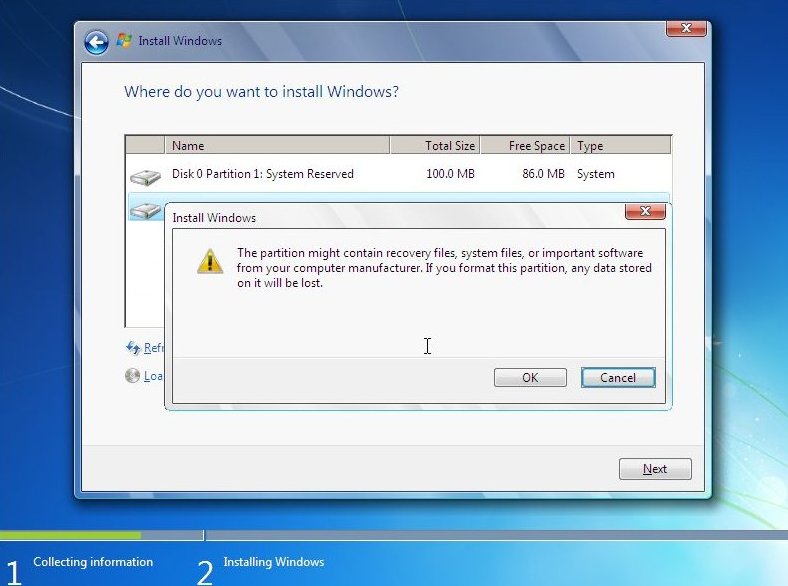
You will be warned about the format, all data will be lost that's on this drive, click "OK" to continue.
Now the "Where do you want Windows to go question" select the drive you created ("Disk 0 Partition 2" in my case), the same drive that you formated in the previous step....
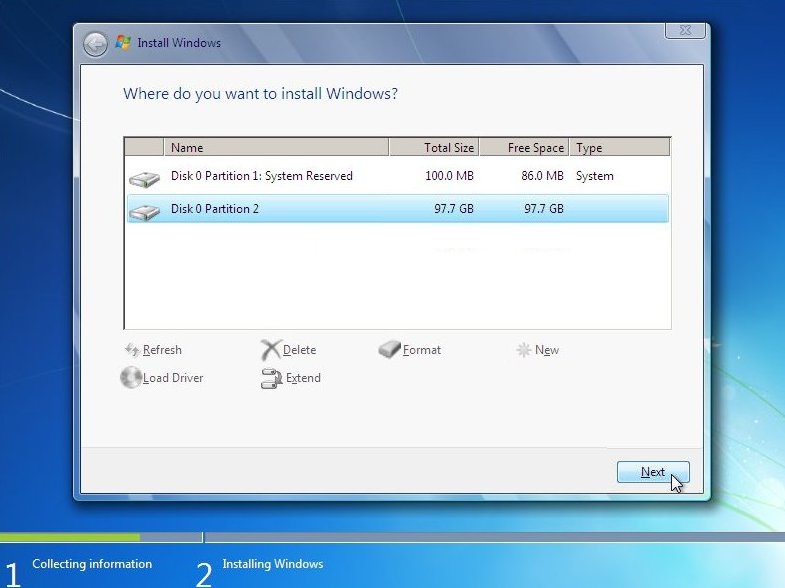
Once selected click "Next" to begin the install of Windows 7.
END OF PART 1
Windows will now begin copying files
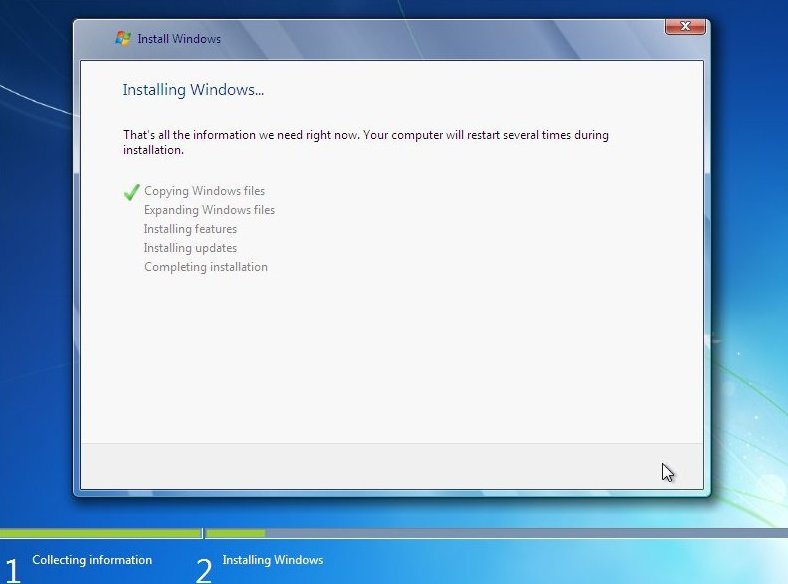
Once done it will begin expanding the "Quite quickly copied files"
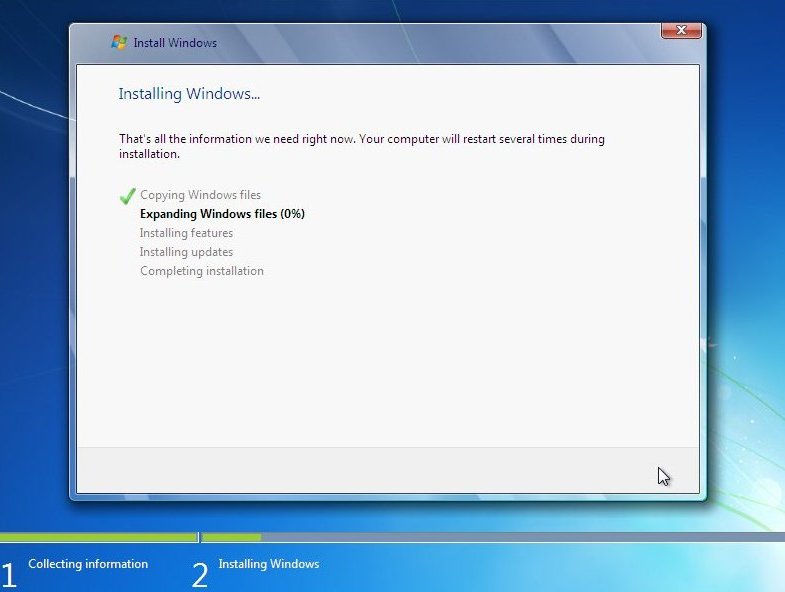
and expand....
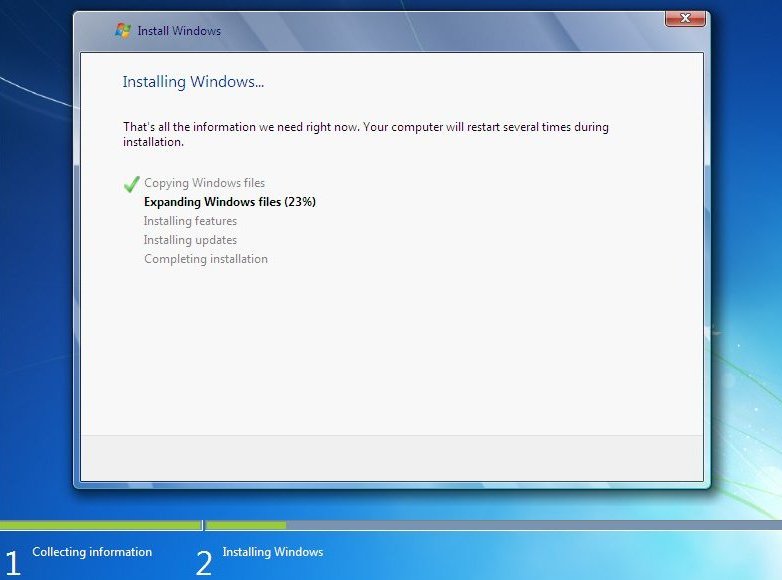
Expand a bit more....
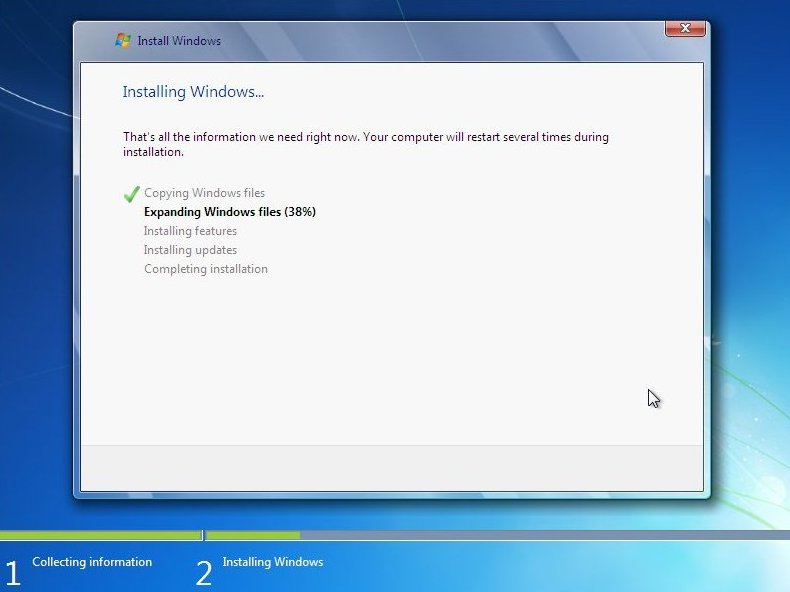
Still expanding, so i took another screen shot....
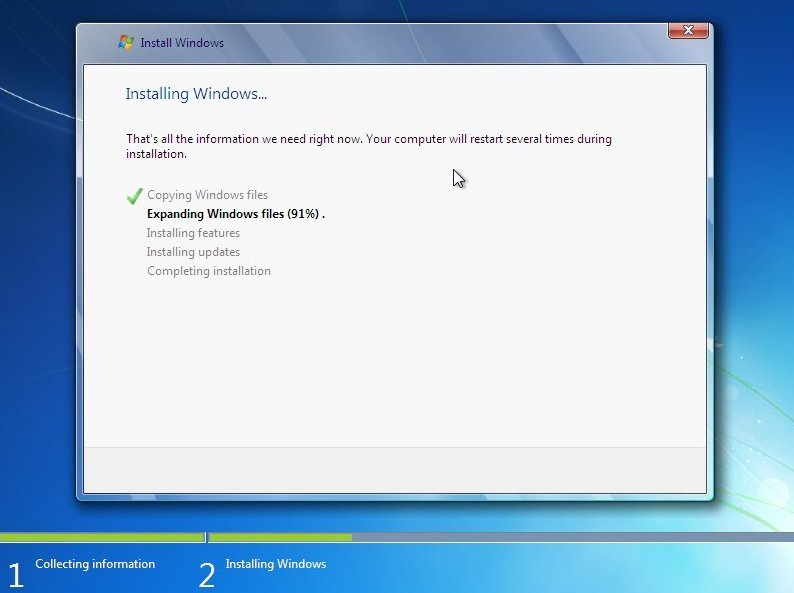
At last the files are "Expanded", now for installing features, this bit was quite quick....
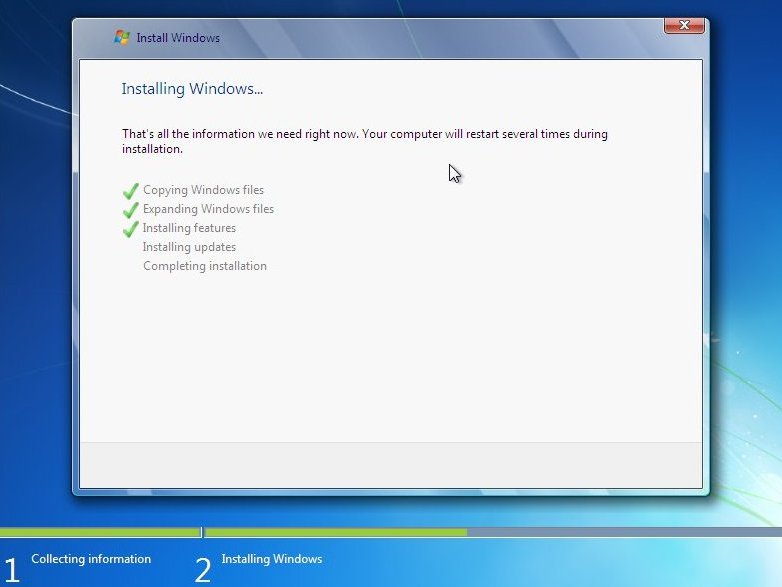
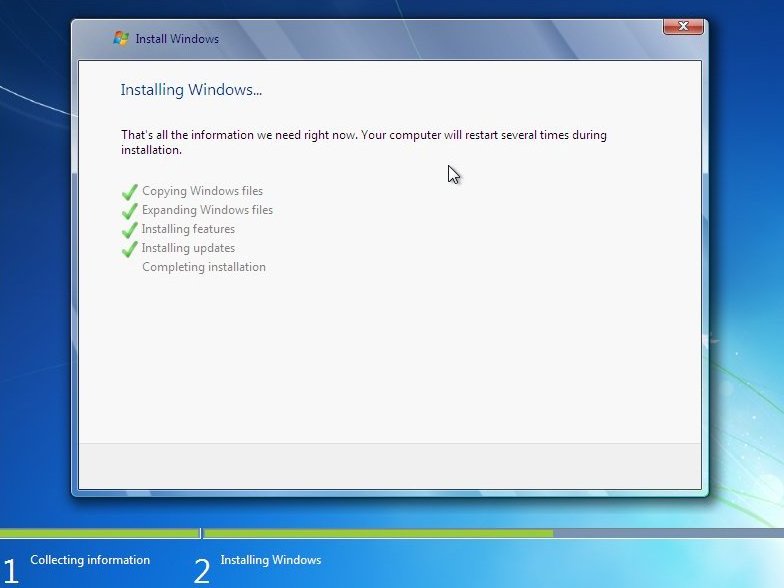
Thankfully no updates down loaded, so on we move :)
A restart, wait 10 seconds or like me click "Restart" to reclaim these precious moments back....
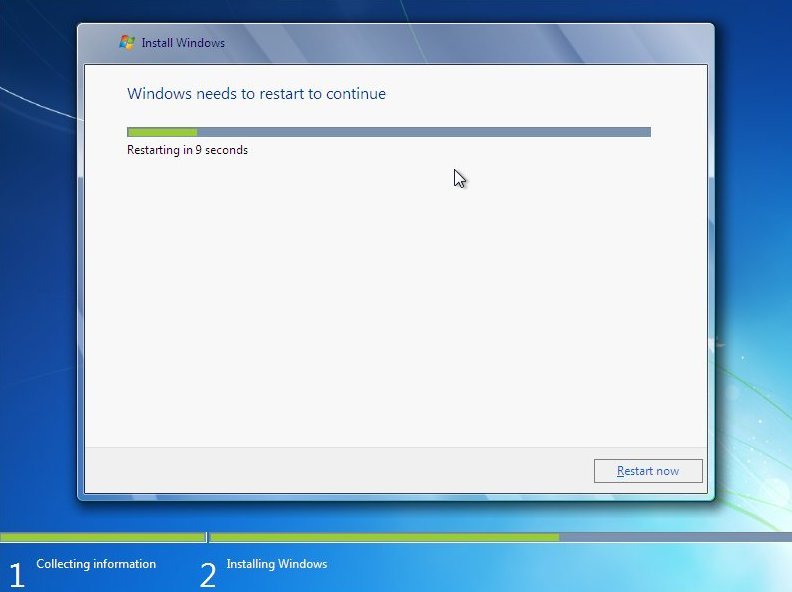
The computer will restart and post again.
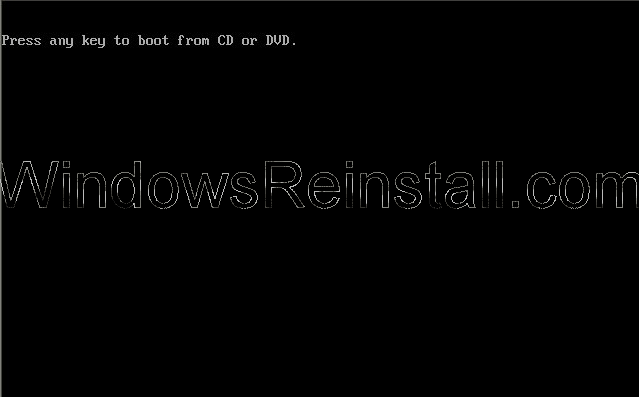
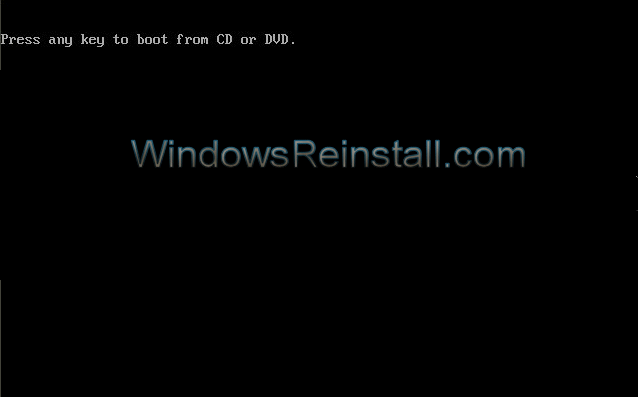
Now "Press any key" boot menu. Do not do this as it will only start the install from the beginning again. Wait the 10 seconds that it appears on screen and resist the temptation...
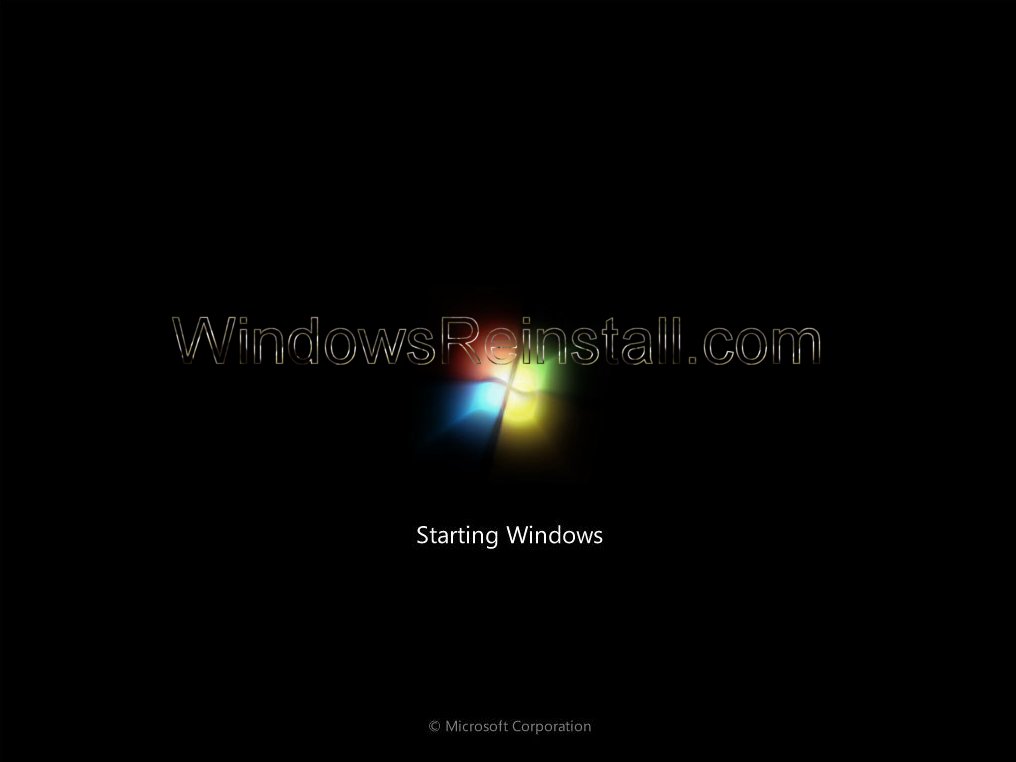
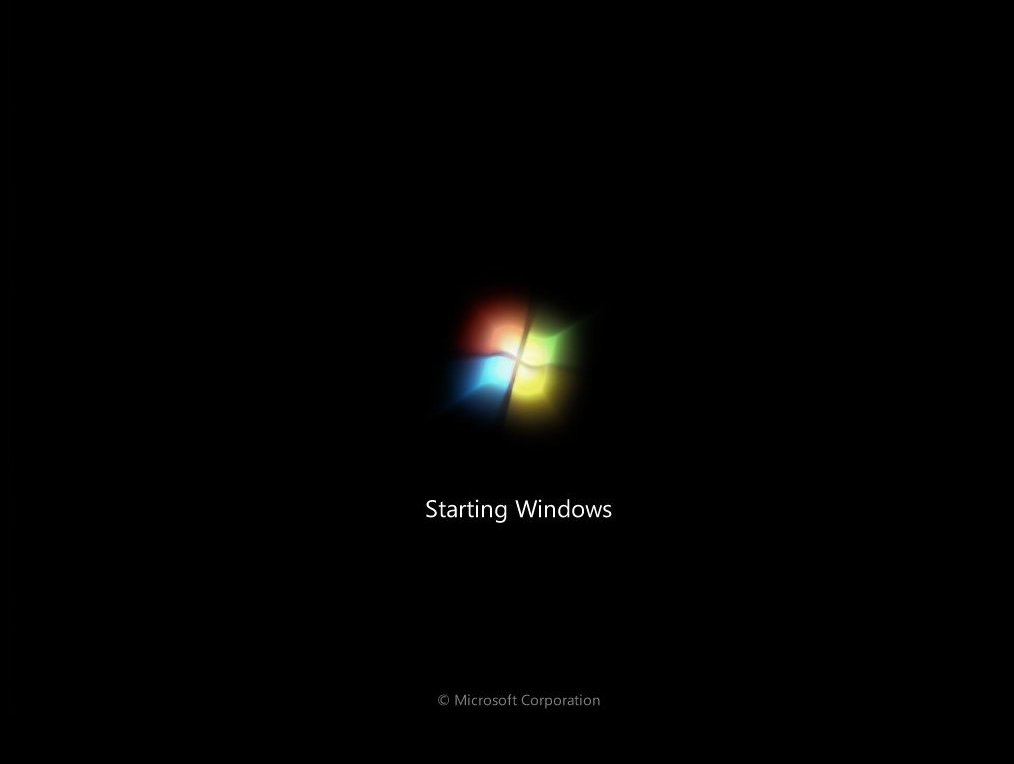
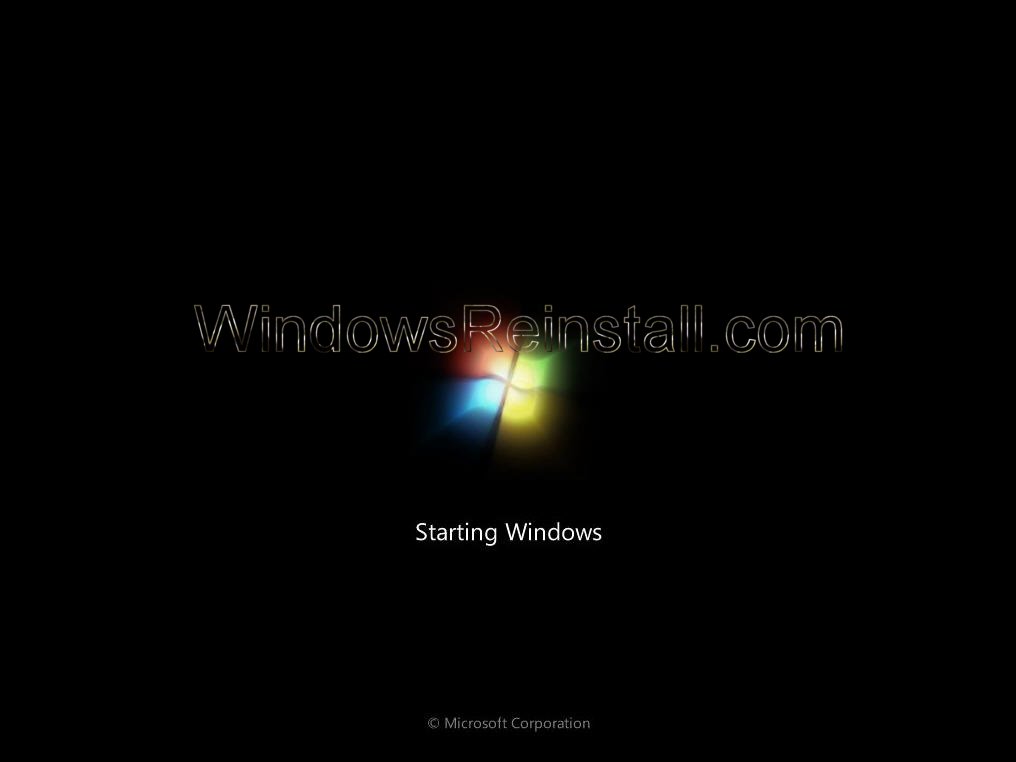
Windows 7 is now "Starting Windows".....
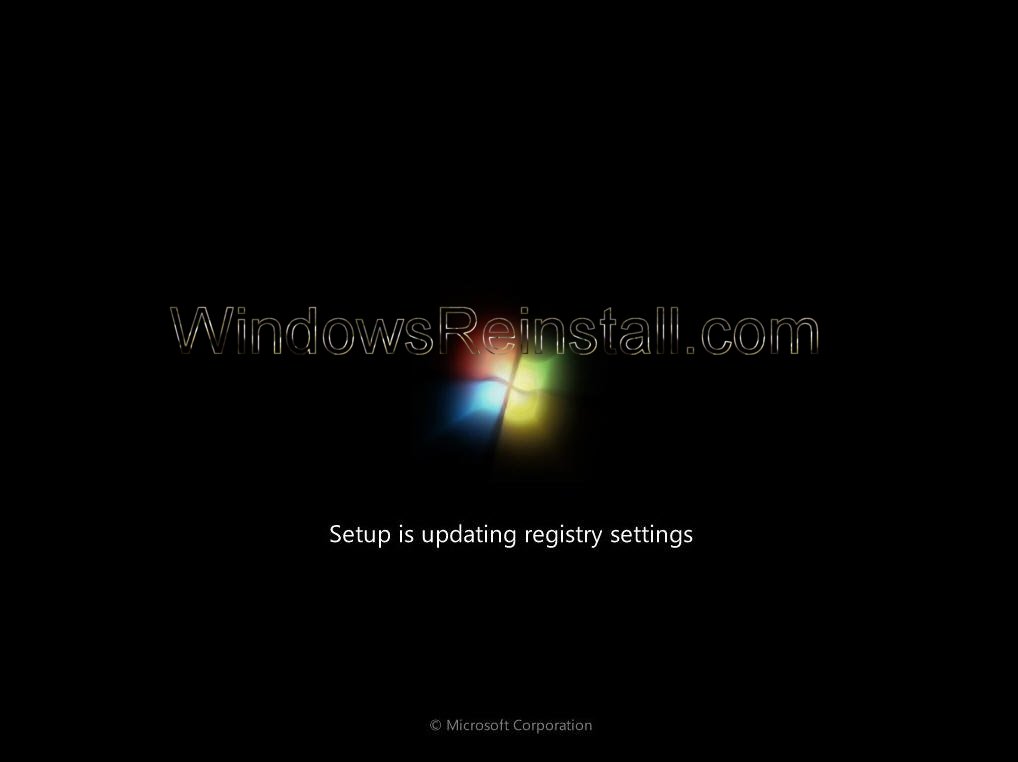
and now Windows sets up the Registry
Now another screen appears, setup is "Starting Windows 7's" services....
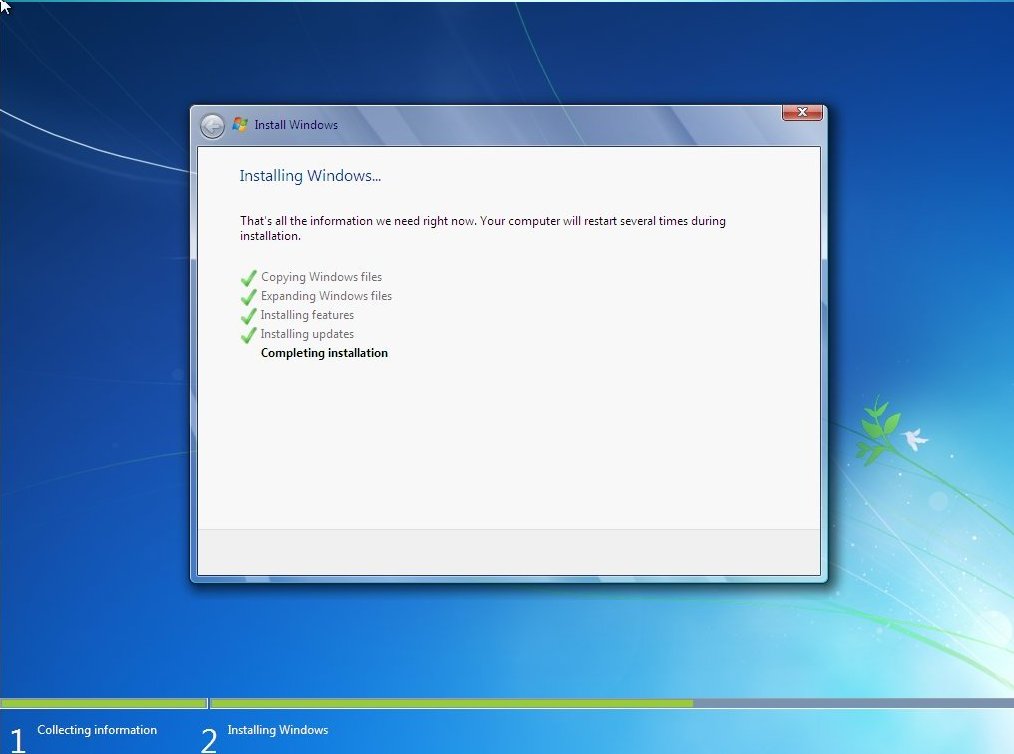
Setup now completes the installation....
and once again a "Restart" is needed....
Same as above, do not press a key as installation will begin again, requiring you to reboot to get back to this screen.
"Windows is starting" again......
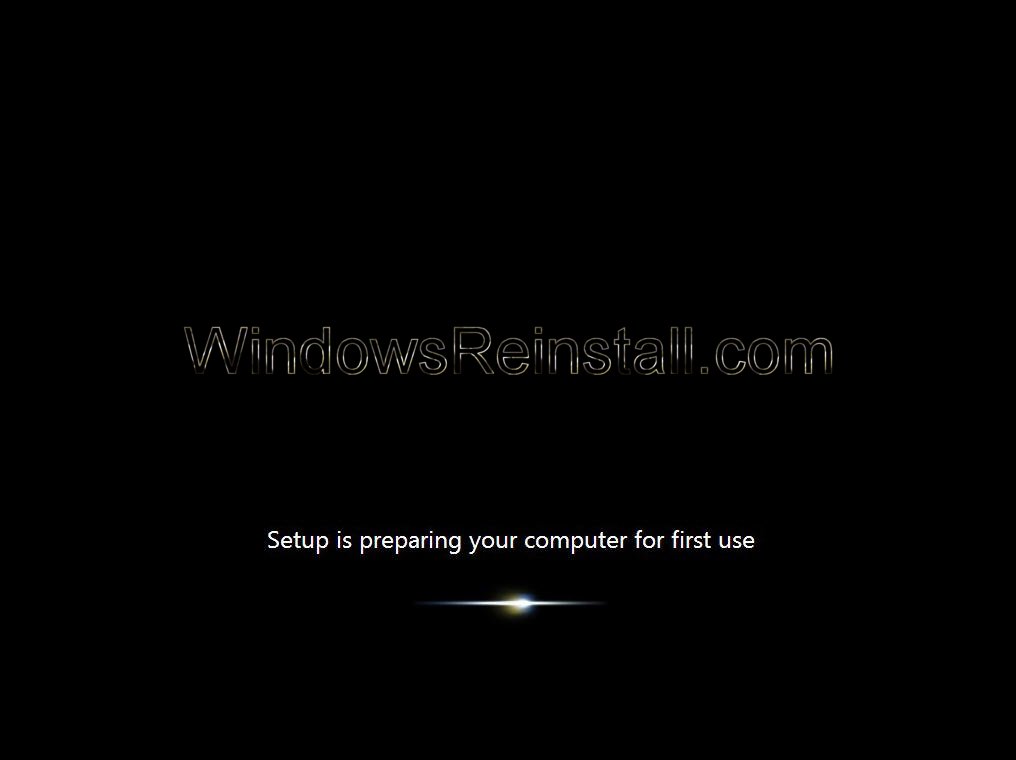
Setup now prepares the system for "First use"....
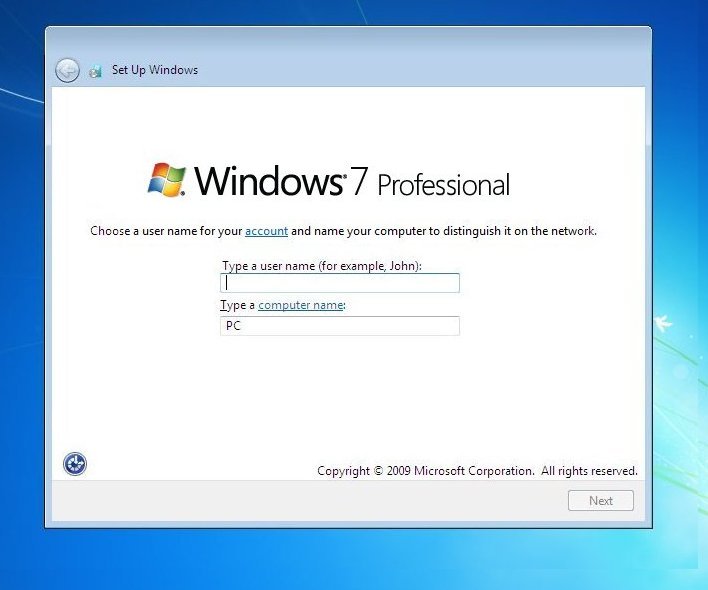
The first time I have needed to do anything in almost 45 minutes, Account and computer name is required....
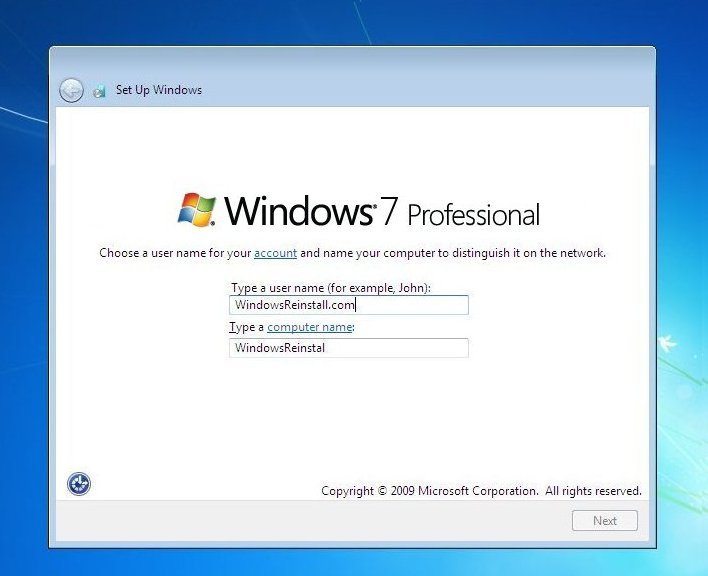
Fill these in and click next to continue....
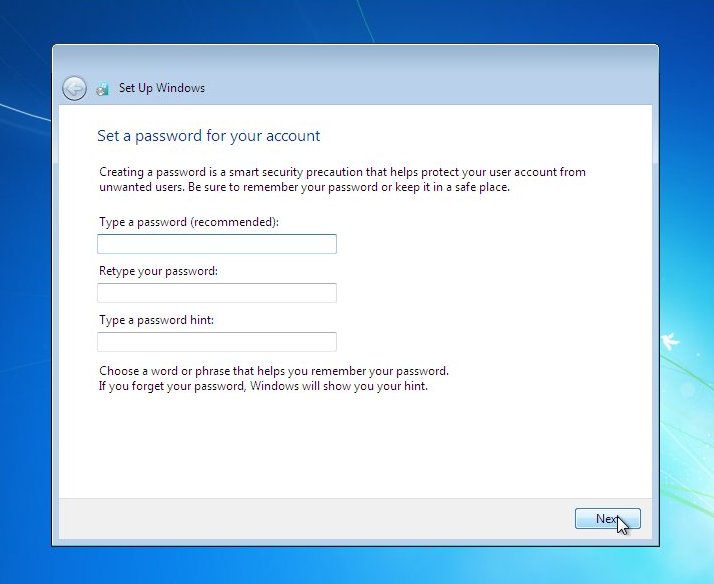
Next the all important password setting screen, leave bank and click next to continue without one, otherwise....
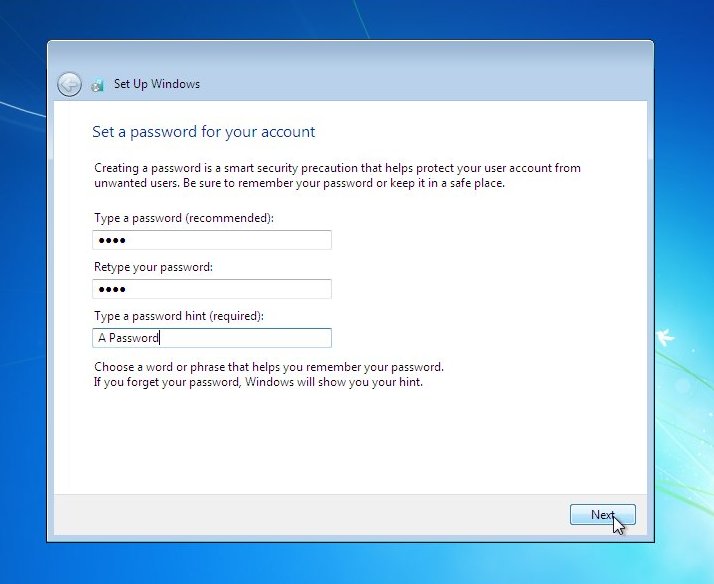
....fill in the password box, retype to confirm, and leave yourself a hint incase it become forgotten. Click "Next to continue.
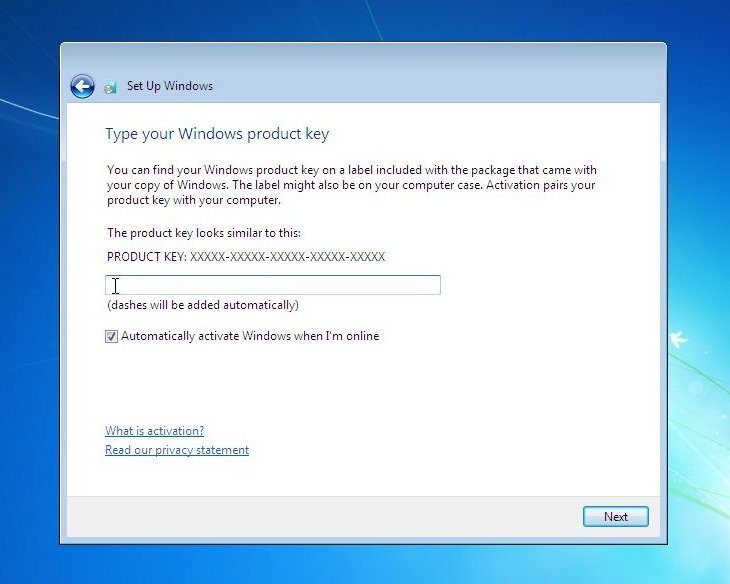
You will now need your Windows "Product Key". This will be on the disk packaging provided with your CD's/DVD's, or from Microsoft's website just before downloading. The product key will be 25 digits long and will contain letters and numbers.
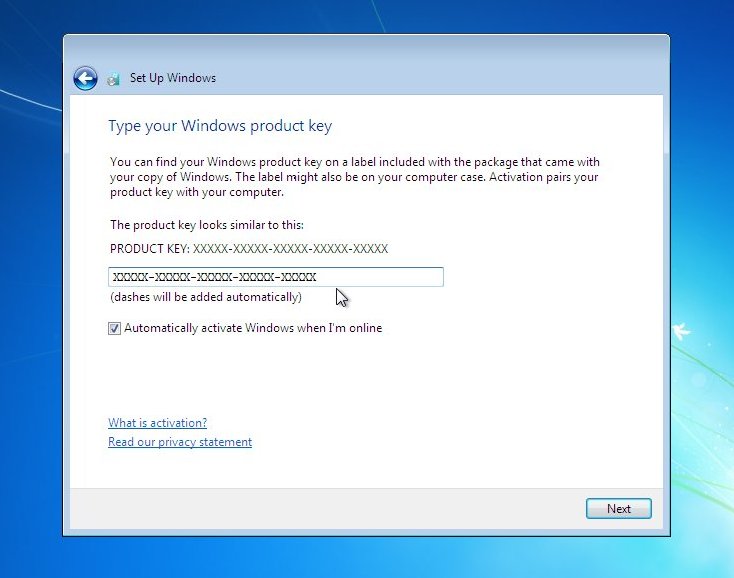
Input key (Dashes will be added automatically), "Automatically activate Windows when online" option is selected by default, deselect if you wish, and then click next to continue.
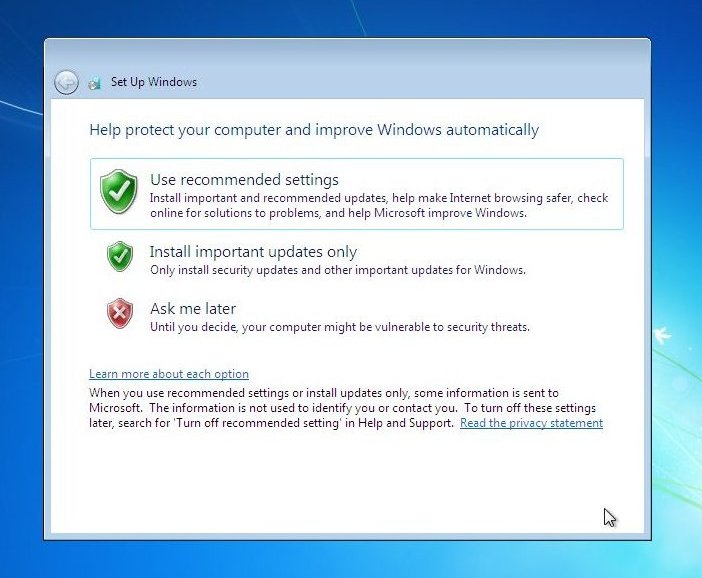
Now the built in Windows protection modes. We would recommend the top option "Use Recommended settings", this will enable updates to be downloaded and installed, click on your selection too continue.
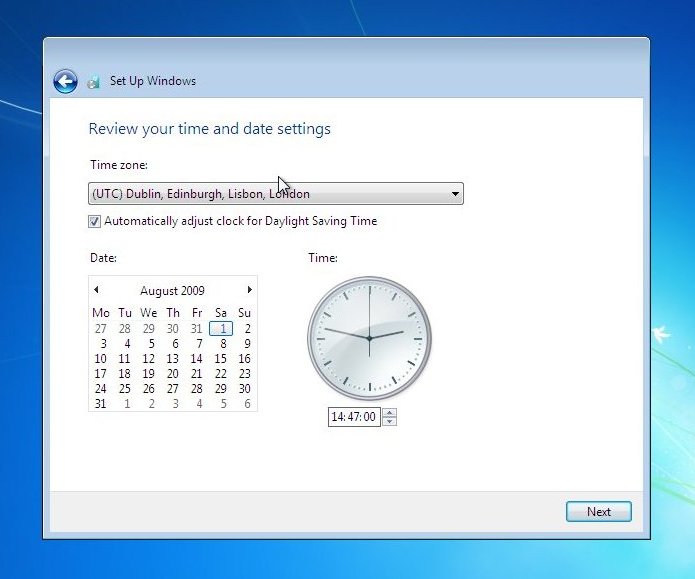
Now you must review your time and date settings
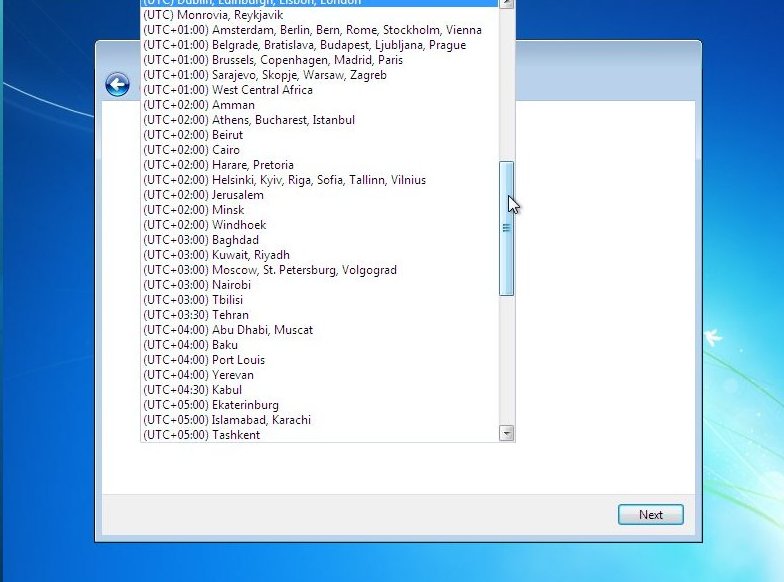
Change your time zone to your present location. If all is OK or once done then click on "Next" to continue...
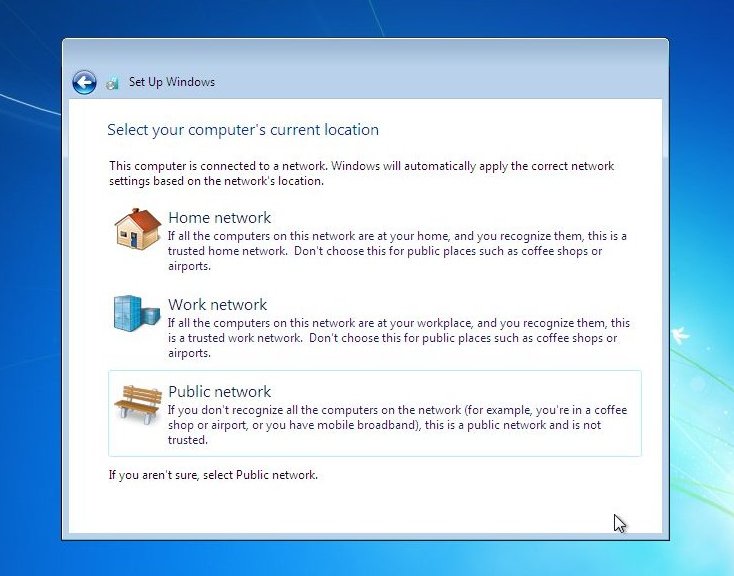
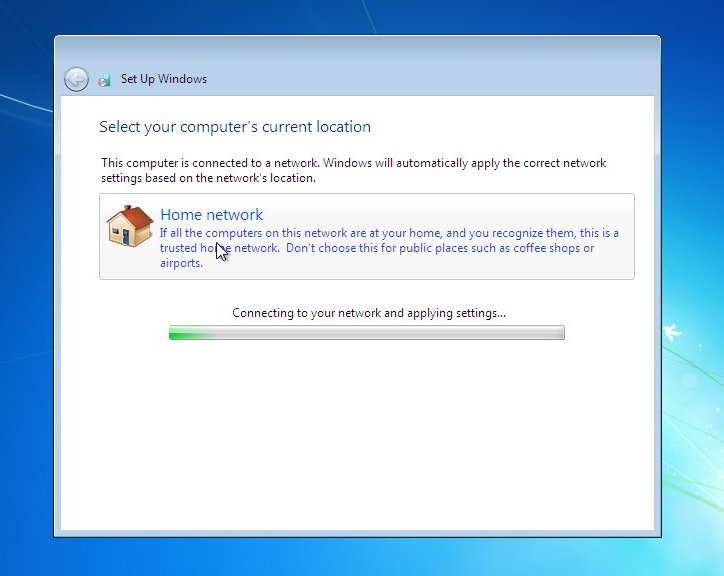
Now your Network configuration, if you want to setup the new "homegroup" network system for easy to configure, password protected configuration, then use this option.
If you want a standard network setup then use "Work Network", allowing you to browse and see other computers
Anywhere that's public, that would be a risk to your files and security, select "Public Network"
Windows 7 setup will now connect to your network , and setup required settings, depending on your choice in the previous memory....
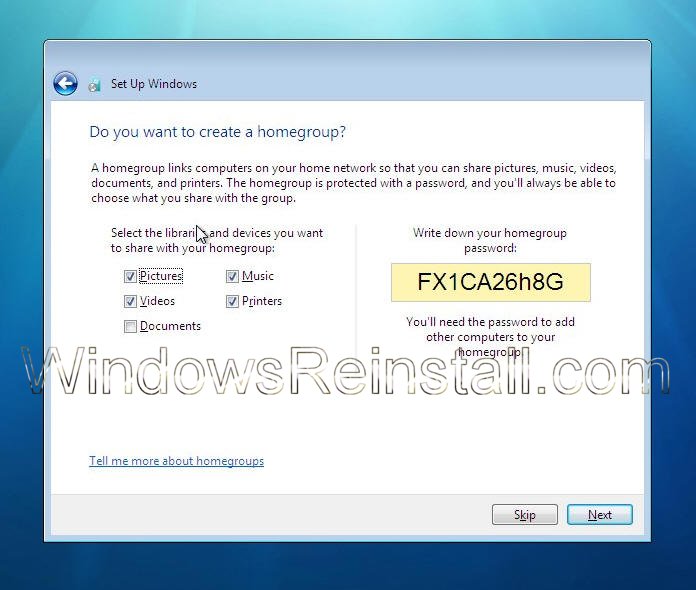
The "Homegroup" option in "Home networking" allows you to select what you want to share, and also provides a password, for others to access. Note this password down as its needed for others to get access to your network.
Users of Media center, Vista Premium (And above), and XBOX 360 will be familiar with this type of setup.
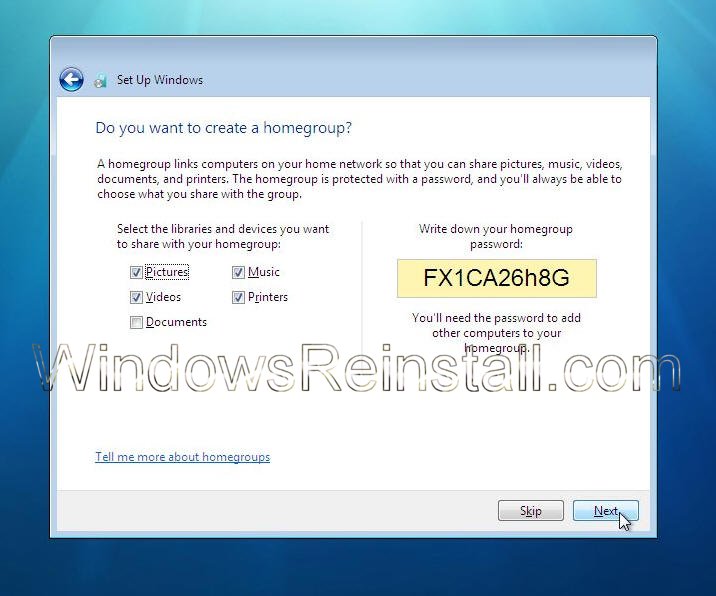
You can of course skip this now and setup later, or make selections, note password and press "Next" to continue.
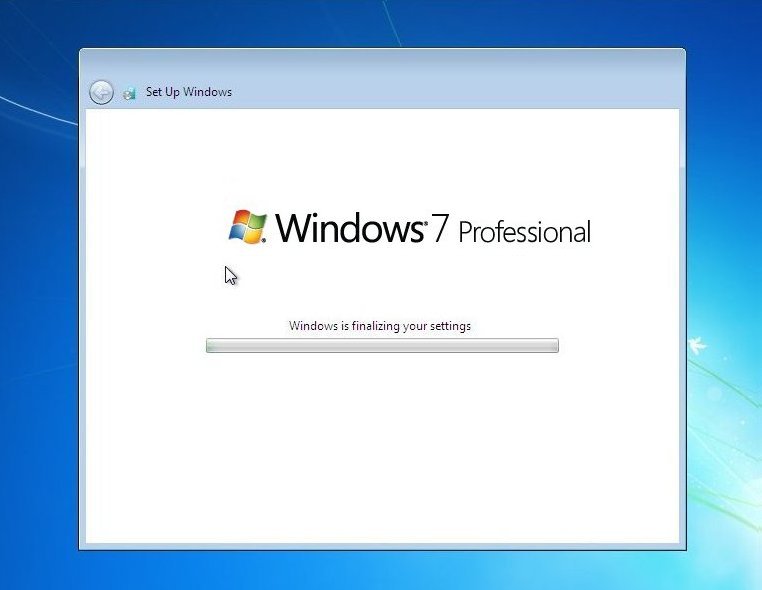
Windows 7 will now finalize your settings
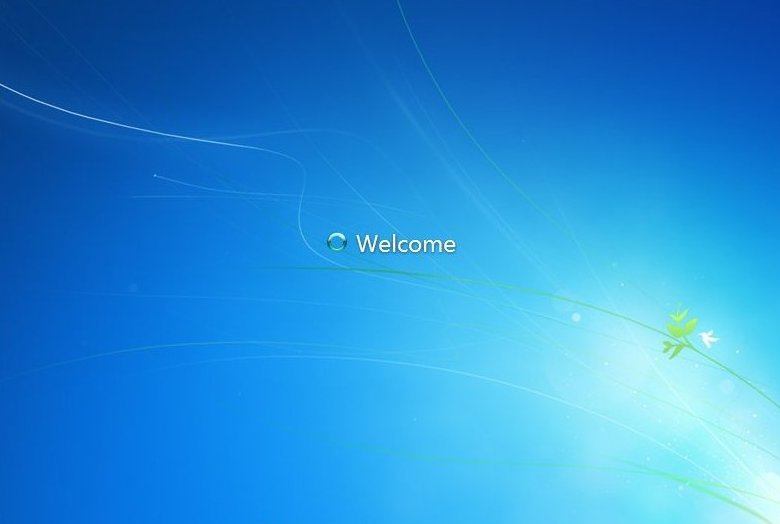
Windows Welcomes you..
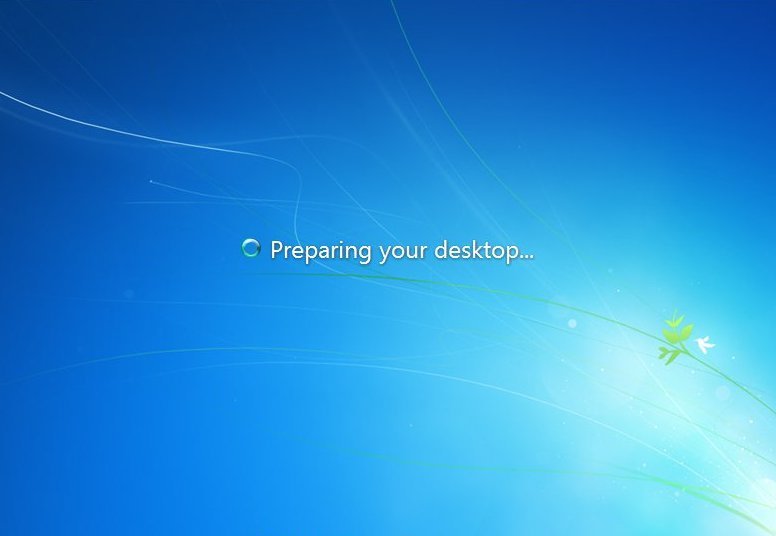
Prepare the desktop
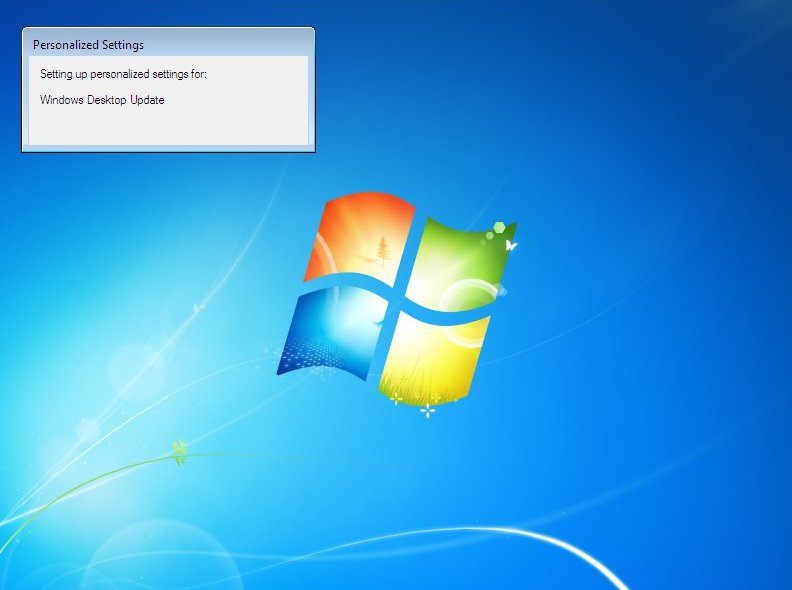
Windows desktop will update
Browser customisations will install
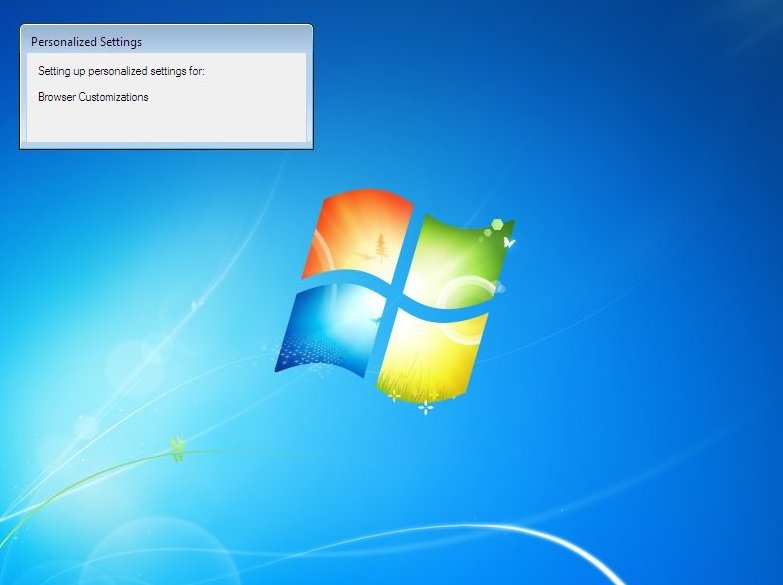
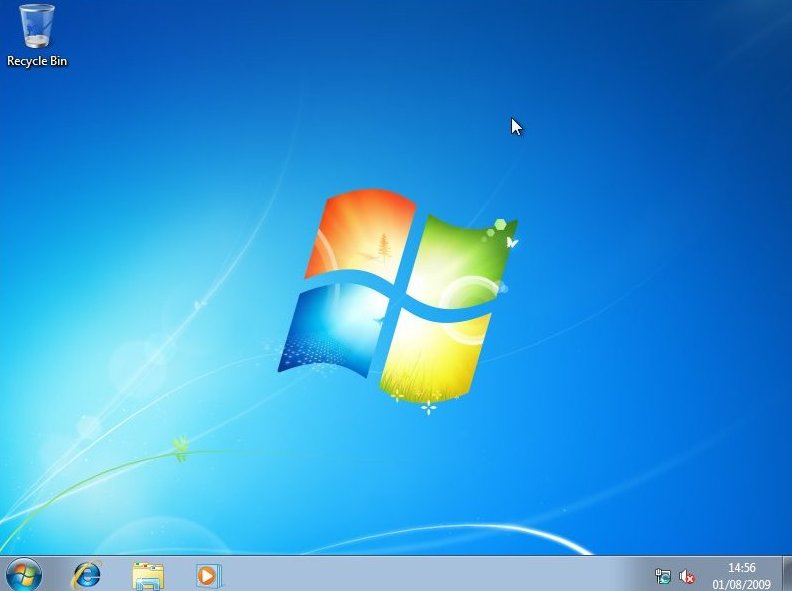
and finally you are there. Windows 7 installed without hitch, any updates will now install. Remember though on next reboot you will be prompted for a password (If you setup one), so don't forget it as I successfully managed to do...
If you are lucky you will have no drivers to install, but chances are the next step will be to install them. Check out device manager for unknown devices, likely items are Network Cards, Sound Cards, Printers, Scanners, Graphics Cards, Digital Cameras, etc.
Also installing anti-virus software, spyware software and possibly a 3rd party Firewall are a must for any computer.
Windows Update is very successful in finding many drivers, so try running it for a few hours, and after a few boots you may find all items installed and ready for use